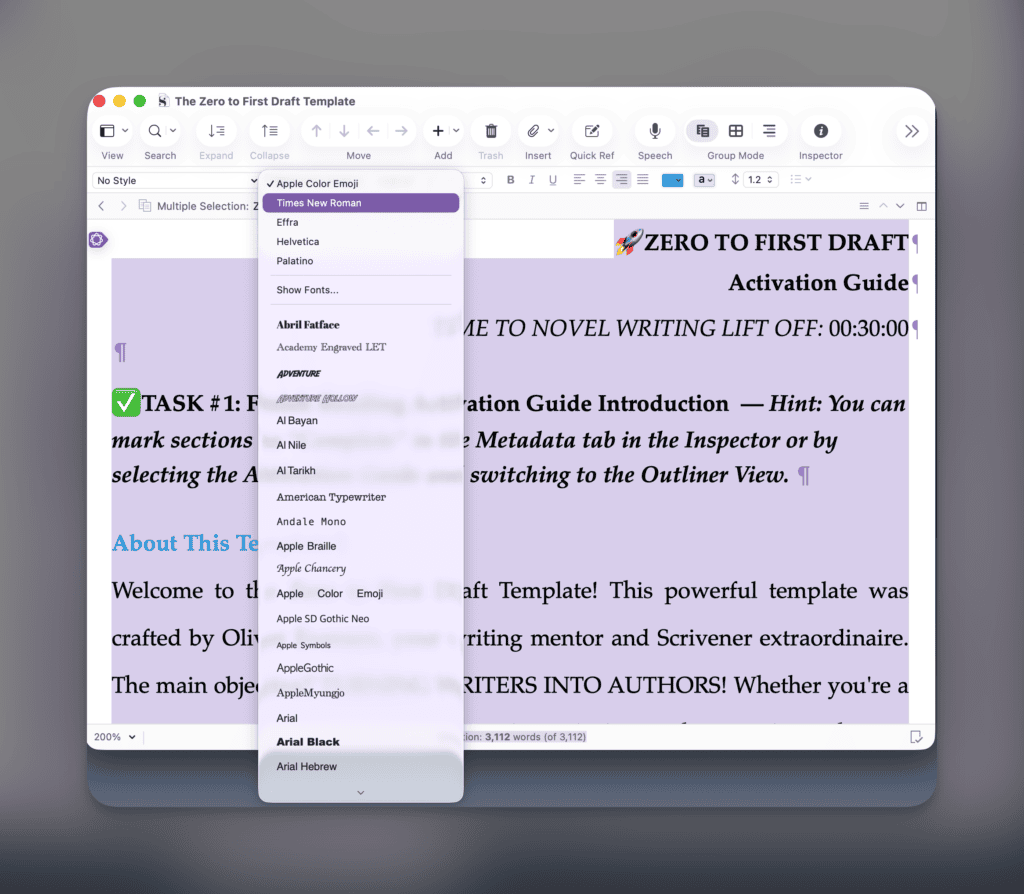
Master Scrivener Formatting: A Step-by-Step Guide

Please stop wasting your precious writing time fixing fonts and line spacing. You can design the writing workflow you have always imagined by mastering a few simple tools. Take control of your manuscript with confidence, and cut back mercilessly on the tedious formatting tasks that slow your progress.

This straightforward guide will show you exactly how to standardize your formatting across your entire project.

Understand the Difference: Document vs. Project Settings

Before you change any settings, you must understand how Scrivener handles text. This knowledge gives you the power to dictate exactly how your manuscript behaves.

  • Document Settings: These formatting choices apply only to the specific text file you currently have open. If you highlight a paragraph and change the font to Times New Roman, it only affects that single document. When you create a new chapter, Scrivener will revert to its default settings.
  • Project Settings (and Global Settings): These are the overarching rules for your software or your specific project. When you change your global default settings, every single new folder or document you create will automatically adopt your chosen font, size, and line spacing across all Scrivener Projects. Scrivener also allows you use different default formatting for new documents on a project by project basis, so you can adjust formatting for single project without needing to adjust formatting globally.  

For true consistency, start first by establishing your global defaults. If a specific project needs different formatting, adjust the project settings for that project instead of changing your global defaults.

Set Your Default Global Formatting

You can easily set up Scrivener so that every new document automatically uses your preferred formatting. Follow these simple steps to build a solid foundation for your writing environment.

  • Step 1: Open your Scrivener project.
  • Step 2: Access your global settings.
    • On a Mac: Click Scrivener in the top menu bar, then select Settings (or Preferences on older macOS versions).
    • On Windows: Click File in the top menu bar, then select Options.
  • Step 3: In the settings window, click on the Editing icon at the top, then select the Formatting tab.
  • Step 4: You will see a dummy text box displaying the current default formatting. Use the formatting bar directly above this text box to choose your desired font, font size, alignment, and line spacing.
  • Step 5: Click Apply or OK to save your changes.

From now on, every new document you create will perfectly match these exact specifications.

Apply Defaults to Existing Chapters

Do not panic if you already have dozens of chapters with messy, mismatched formatting. You do not need to fix them manually. Scrivener provides a powerful tool to instantly update your old work to match your new defaults.

  • Step 0 (Optional but recommended): Back up your project by going to File > Back Up > Back Up To….
  • Step 1: In the Binder on the left, select all the documents and folders you want to change. Hold the Shift key to select multiple items at once.
  • Step 2: With your documents selected, go to View > Scrivenings in the top menu.
  • Step 3: Navigate to Documents > Convert > Text to Default Formatting.
  • Step 4: A pop-up box will appear asking you to confirm the changes. Here, you can select any formatting you want to preserve (like font size or alignment). Click OK to finish.
Text to Default Formatting in Scrivener

Scrivener will instantly wash through your selected documents and convert them to your beautifully standardized formatting.

Setup Project Specific Formatting

Sometimes you want a unique look or style for a particular project, without changing Scrivener’s default settings for every other manuscript. You have that freedom, and Scrivener gives you the tools to do it.

  • Step 1: Open the project you want to customize.
  • Step 2: Go to the Project menu at the top of the screen and select Project Settings.
  • Step 3: In the project settings window, look for the Formatting tab or section.
  • Step 4: Check the box labeled Use different default formatting for new documents in this project.
  • Step 5: Adjust the font, size, line spacing, and other formatting options just as you would for global defaults. These changes will now apply only to new documents you create within this specific project.
  • Step 6: Click OK or Apply to save your settings.
  • Important: These project-specific settings override global defaults for this project only. They don’t alter how new documents look in your other Scrivener projects. 

To change the formatting for any old documents this projects new formatting you’ll need to 

  • Step 1: In the Binder on the left, select all the documents and folders you want to change. Hold the Shift key to select multiple items at once.
  • Step 2: With your documents selected, go to View > Scrivenings in the top menu.
  • Step 3: Press ⌘A (Mac) or CTRL A (Windows) to select all your text and change to the Default Formatting using the Main Editor’s Format Bar. 

You now have the exact steps required to master your writing environment. Implement these simple changes today, and give yourself the freedom to focus entirely on your words.

Picture of Oliver Evensen

Oliver Evensen

Host of Literature & Latte's monthly "Scrivener Webinar Series" and fantasy author, Oliver Evensen has over 15 years of experience with Scrivener and the craft of writing. Oliver shares expert tips and strategies to help writers master their tools and bring their stories to life.

Share this Writing Tool:

If you like this post, you'll love my Ultimate Scrivener Starter Novel Template

It’s one of the best things I’ve created (and 100% free), just tell me where to send it.

Along with the guide, I’ll also send you my Insiders newsletter where I share other exclusive content that’s not on the blog.